
HP Photosmart Pro B9180 Review
Review Date: August 21st 2006
Author: Jon Canfield
Leave a comment about this Review
Introduction
First announced in February 2006 at the PMA show, the new Photosmart Pro B9180 from Hewlett Packard is one of two new competitors to the Epson R2400 (the other being the Canon iP9500). Although 13x19 inkjet printers have been available for some time, including the highly regarded Photosmart 8750, the HP B9180 is the first pigment ink photo printer from HP, and the first Photosmart printer to bear the Pro label. In this review, I'll look at setup and use, output, and media choices. As you'll see, the HP Photosmart Pro B9180 is a major new product that is going to have an impact on the photo market, and is also a sign of what's to come.
Compare Prices
Support PhotographyBLOG: Buy the HP Photosmart Pro B9180 from one of our affiliate retailers:Setup
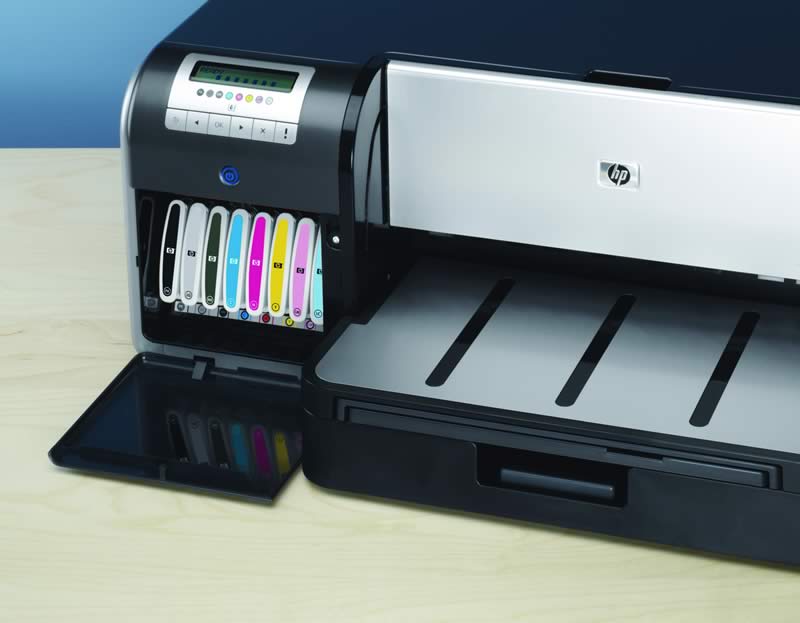
The HP B9180 comes with everything needed to print right out of the box. Unpacking and setup is guided with an easy to follow quick start chart. After plugging the printer in, you'll be prompted on the LCD display to set your language, and then install the ink cartridges. The HP B9180 uses eight individual ink tanks, including a photo black, matte black, and light gray to help produce neutral black and white prints. All inks are installed at all times, avoiding the need to swap photo and matte blacks when changing paper types. Cyan, magenta, yellow, light cyan, and light magenta round out the ink selection. Ink cartridges are a generous 27ml, and list for $33.99.
The printer will take several minutes to prime the ink lines and then prompt you to install four printheads - each head serves two colors. Unlike Epson, both HP and Canon have user replaceable print heads, which has its advantages and disadvantages. In theory, the HP and Canon method is better because you avoid expensive repairs when a printhead needs to be replaced. On the other hand, Epson's printheads typically last as long as the printer, so replacement isn't something most Epson owners need to deal with.
After the printheads have been installed, the printer continues the initialization process and prompts you to load a package of provided glossy paper which is used to check the alignment and calibration of the printer. The HP B9180 is unique in this category by including a closed loop calibration system - something previously found only in large format printers costing significantly more.
Software installation for both Macintosh and Windows is straight forward. HP installs printer drivers, paper profiles, and printer utilities to maintain the printer as well as calibration and adding new paper types. HP also provides a Photosmart Pro plug-in for Photoshop that I'll cover shortly. Finally, Mac users get HP Photosmart Studio, while Windows users get HP Photosmart Premier. Both are capable image browsers, with basic editing controls and options for creating projects like greeting cards and calendars.
The final step is to connect the HP B9180 to your computer. HP includes both USB 2.0 and Ethernet ports, which is unusual, but welcome, in a printer at this price point.
Paper is handled through two different paths. A tray, which holds up to 200 sheets of paper from passport to 13x19, and a specialty media tray for single sheets of media up to 1.5mm thick, which you'll use for fine art papers, canvas, and other material that needs a straight feed, as well as paper longer than the 19� maximum allowed in the tray. Unlike the Epson printer, the HP has no roll adapter or cutter, so you're limited to sheet media.
You'll need a fair amount of space for this printer. At 26� wide, and 28� deep, it's not small. And, if you plan to use the specialty media tray, you'll need enough space behind the printer for your paper to feed.
The build quality is substantial, as you would expect in a pro level printer. It's obvious HP build the B9180 to last.
Ease of Use
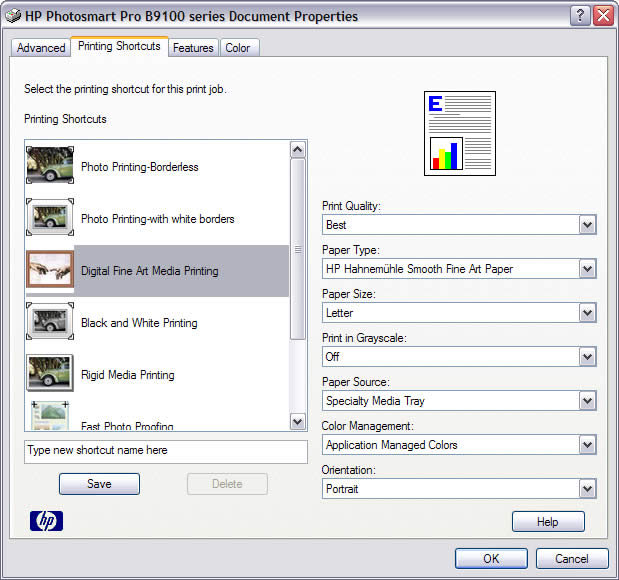
Once you've installed and calibrated the HP B9180, it's ready for output. If you've used HP printers in the past, most of the options will be familiar to you, with selections for color management, paper size and type, as well as new choices for printing grayscale images with all colors, or only using the gray/blacks.
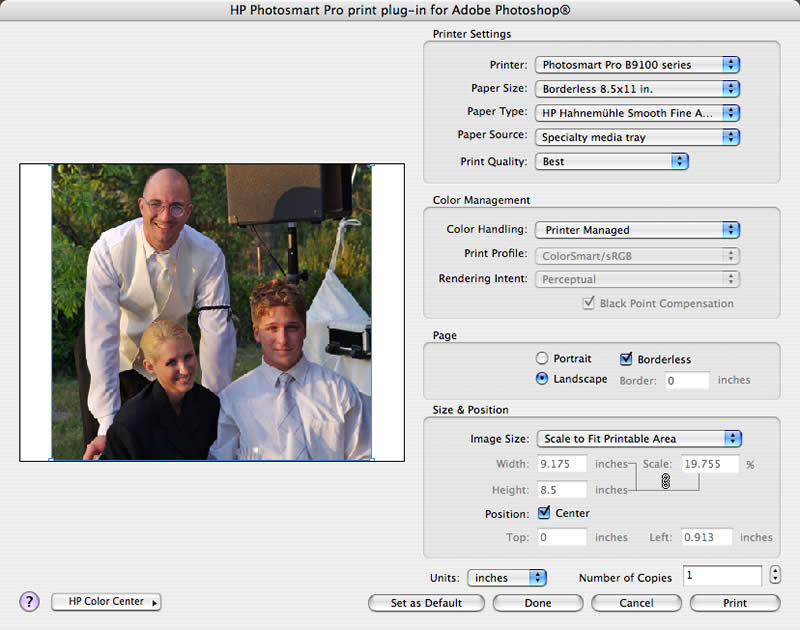
Using the Photosmart Pro plug-in greatly simplifies things though, handling all color management options in a single window similar to Photoshop's Print with Preview option. Here, you can set Printer Managed as the color handling option and the driver will automatically select the correct profile based on your paper selection.
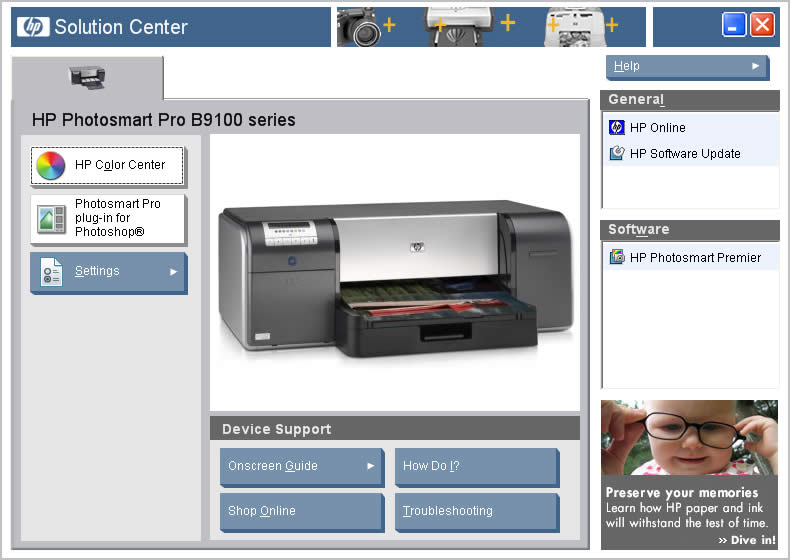
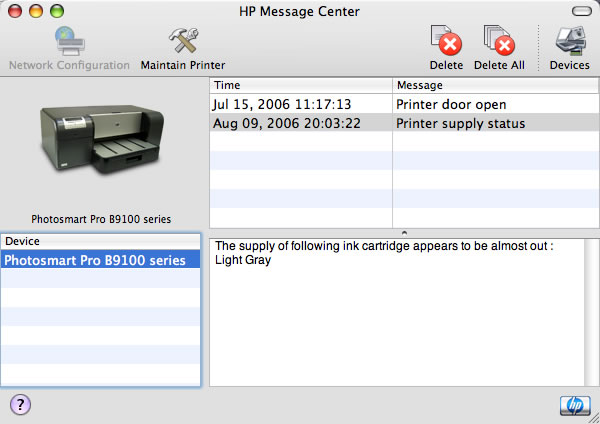
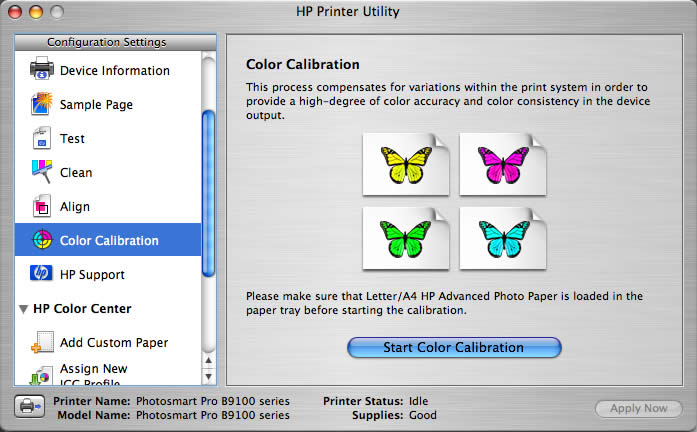
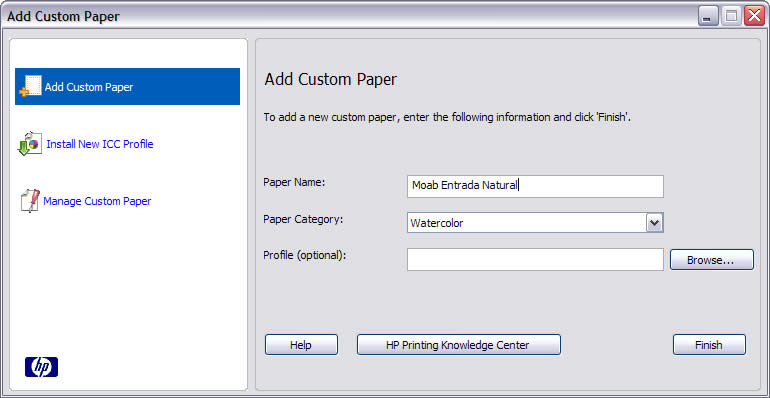
HP's Device Manager (Mac) and Solution Center (Windows) provide access to a number of features on the B9180, including color calibration, head cleaning, ink and printhead status, and options to add new paper types and profiles for use with third party media. When supplies begin running low, the Message Center will open with information on which color needs replacing. I did find that this feature is conservative though. I typically was able to get another seven or eight 8x10 prints after a low ink message before needing to actually replace a cartridge.
Print speed is on par with other photo printers from HP � a bit faster than Epson, a bit slower than Canon. Where the B9180 excels is paper handling. With two separate paths, there is no need to unload from the tray to use the specialty media feed. Just open the cover and the printer automatically switches paths for you. Loading media in the specialty feed is very simple and nearly foolproof. I did manage to mis-feed some canvas the first try, but after that had no problems with alignment or feeding.
Although the printer driver only has paper settings up to 13x19, you can choose the Custom option to create page sizes up to 13x44. I printed several 24" and 30" panoramics with no problem at all.
Ink use is very light. I don't have figures for the number of prints possible with a set of cartridges (and it would depend on the media and image printed), but the HP B9180 seems to have inherited the miserly ink use of the DesignJet 130. You can further reduce ink use by leaving the printer on at all times (which is what the user guide recommends). This prevents the printer from doing a full nozzle check and printhead servicing at startup. The HP B9180 will perform a nozzle check each day, and if a clog is found only the affected nozzles are cleaned, saving a great deal of ink. Combined with the larger cartridge size (27ml vs 12-13ml), you'll spend much less time swapping cartridges out.
Media Options
Unlike dye based printers, pigment inks have the ability to print on a wide variety of media types, and HP has embraced this with the B9180, introducing a number of new papers with the printer. Along with the usual gloss and satin media, HP has added photo rag, watercolor, canvas, smooth fine art, and aquarella, which is a highly textured paper. Many of these papers are being provided by Hahnemuhle and seem to be the same as their own brand of the same type.
I also tested the HP B9180 with a variety of third party papers, including Moab Entrada and Kayenta, Crane Silver Rag, and Hawk Mountain Peregrine Velvet. In all cases, I created custom profiles as well as using the closest match in the supplied profiles. Without exception, each of these papers worked fine with no puddling or smearing of ink.
HP is rating all their papers at 200+ years, based on testing from Wilhelm Research. This applies to color and black and white, making the pigment Vivera inks the new longevity leader.
Print Quality
To be honest, I've been very satisfied with my Epson printers. The 7800 and R2400 deliver excellent quality color, and the Advanced B&W mode does the job just fine. So, I was pleasantly surprised at the initial prints out of the B9180.
Color prints had a vibrancy that exceeded the Epson prints and were near the equivalent dye prints from the HP DesignJet 130, with rich blues and reds that I haven't seen in a pigment printer prior to now. Black and white prints were very neutral with no bronzing to be seen. There is a bit of gloss differential in pure white areas � this is one area that Epson has improved with the gloss optimizer in the R1800. I was unable to detect any metamerism, or shifting of color, in different lighting situations with color or black & white prints.
Where the HP B9180 pulled away from the competition was in the level of detail seen in prints. In many cases, I was able to see more fine detail than any previous printer has shown, and the B9180 was able to pull more detail from dense shadow areas than any printer I've used to date.
Conclusion
 |
|
|
Ratings (out of 5) |
|
| Design | 4 |
| Features | 4 |
| Ease-of-Use | 5 |
| Image Quality | 5 |
| Value for Money | 5 |
Overall, the HP B9180 is hard to beat. The image quality is first rate, and with the move to pigment inks the print life and media options are excellent. I do wish the printer had a roll option as many of the fine art papers I buy are on a roll. To be fair to HP, only Epson offers this option at this size. HP has clearly put a great deal of effort into their new Vivera pigment inks to give the user more color and dynamic range from their prints than what was previously available. If you've been holding off on moving to pigments for this reason, the wait is finally over.
Design
| (click images for larger versions) | ||
 |
 |
|
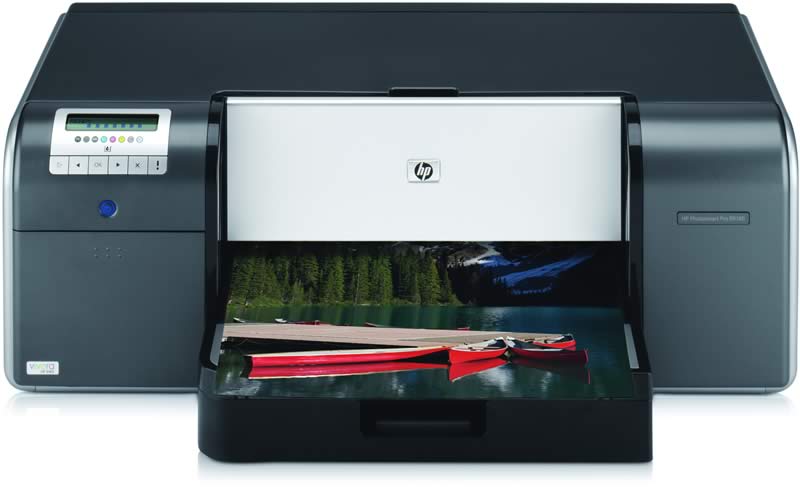
| Figure 1: The HP Photosmart Pro B9180 handles media up to 13x19 and uses 8 pigment inks for a wide variety of media types. | Figure 2: High capacity individual ink cartridges are easily installed at the front of the printer. | |
 |
 |
|
| Figure 3: The included software (Windows shown here) lets you monitor printer status as well as perform maintence, add profiles and custom papers, and calibrate your printer. | Figure 4: The HP Message Center prompts you when supplies are running low. | |
 |
 |
|
| Figure 5: Color calibration, as well as many other tasks are easily performed. In this case, the closed loop calibration built into the printer evaluates the print and makes any needed adjustments automatically. | Figure 6: Black & white prints can be done with all colors, or only with the gray inks. This lets you print completely neutral b&w photos. | |
 |
 |
|
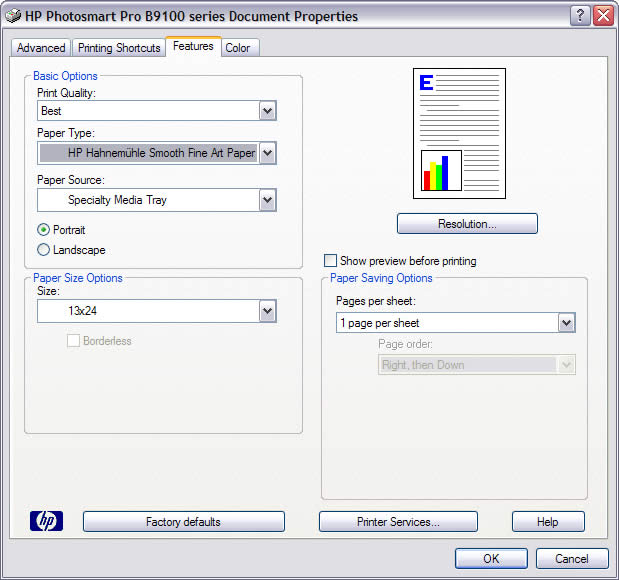
| Figure 7: You can add third party papers and profiles which will be added to the supported papers list in the print driver and Photoshop plug-in. | Figure 8: The printer driver has most of the same features as previous models, but you have many more choices now for media types. | |
 |
 |
|
| Figure 9: There is a new tab in the printer dialog, Printer Shortcuts, which moves many of the selections you'll need to make into a single dialog with presets based on the type of print you want to create. | Figure 10: The Photoshop plug-in takes much of the guess work out of printing to the B9180. I found that prints from the plug-in matched the quality of the Print with Preview and driver settings normally used in Photoshop, but it was much quicker and easier to navigate. | |
Leave a comment about this Review