
Epson P-5000 Multimedia Storage Viewer Review
Review Date: January 29th 2007
Leave a Comment about this Review
|
Introduction
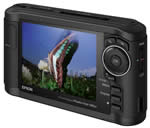
The Epson P-5000 Multimedia Storage Viewer is a portable storage device that allows you to download digital photos and movies onto its 80Gb hard-drive and then view them on its 4 inch, 640x480 resolution, 4-colour filter system LCD screen. The Epson P5000 has built-in card slots for Compact Flash and SD / SDHC memory cards and it also supports the majority of other memory card formats via optional adapters. The Epson P5000 will be of particular interest to digital SLR camera users as it can show a preview of many RAW file formats as well as JPEG images, and it supports both the sRGB and Adobe RGB colour spaces. You can connect the P-5000 directly to a PC or TV and it will print directly to any printer that supports the PictBridge standard. In addition the Epson P-5000 can play digital music (MP3, WMA and M4A files) and video (MPEG 1/2, MPEG4, H.264/AVC, WMV9, MJPEG and DivX). When compared to the older P-4000 model, the Epson P5000 offers a larger LCD screen (4 inch vs 3.8 inch), revamped design and user interface, and expanded support for more RAW file formats. Is the Epson P-5000 the right portable storage device for you, and is it worth upgrading from the P-4000? Read our review to discover the answers.
Compare Prices
Support PhotographyBLOG: Buy the Epson P-5000 Multimedia Storage Viewer from one of our affiliate retailers:Ease of Use
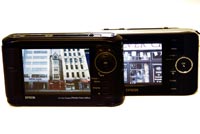
With the P-5000, Epson have decided to change the design ethos of their Multimedia Storage Viewers, making them more rugged and a little less stylish than before. The P-5000 is still a very nice device that impresses from the first moment that you first take it out of the box, but it now more closely resembles competitor devices, in particular Jobo's Giga Vu Evolution. There are much more pronounced, rubberised hand-grips on the back and left-front of the device, giving it a slight outwardly curved body, and all of the buttons have been changed to a more angular, responsive format. The two-tone black/silver colour scheme of the older P-4000 has been replaced by a sober all-black design, and the AV/Out, USB and DC In ports now have proper protective flaps. All of these changes are quite subtle, but become much clearer when comparing the P-5000 side-by-side with one of the older units. I would summarise by saying that the P-5000 sacrifices outright style in favour of being able to take a few knocks out in the field, whilst the older P-4000 is perhaps better suited to showing off your photos to other people.
Resembling the PlayStation Portable gaming device in terms of design layout, the Epson P-5000 is dominated by its 640x480 resolution, 4 inch LCD screen. It's difficult to describe how impressive the picture quality is without actually seeing it for real - screen and product shots just don't do it justice. Seeing your images on such a big and clear LCD really makes them come alive, making the Epson P-5000 suitable for reviewing your photos whilst out in the field and for showing them off to friends and family when you get home. Importantly the screen doesn't seem to be prone to scratches - the review sample that I received from Epson UK did not have a single scratch or mark. The Epson P-5000 is not the most compact portable storage device on the market, and it's bigger and heavier than the older P-4000 model, measuring 150mm x 33.1mm x 88.7mm and weighing 430 grams.
You turn the Epson P-5000 on and off by sliding the Power switch downwards, and are then greeted by a minimalist Epson splash screen logo before being taken to the Home screen (shown below). In keeping with the new, rugged approach, the large icon-based system of the older models has been replaced by a minimalist vertical list of text-based options (with much smaller icons). There's still a battery level indicator at the top right, but the 3 rows of icons that represented the various options has been replaced by a list of 8 main options. These are in order: My Music, View Rated Files, My Videos, My Photos, Backup Files, Memory Card, USB Device, Settings. Scrolling through the list reveals a sub-menu for each main option, which you can highlight by pressing right on the round navigation ring, and then select by pressing the OK button.
When a memory card is inserted into the Epson P-5000, the type of memory card is automatically detected and you are given the option of backing it up or browsing the contents. You can also access the same options from the Memory Card menu on the Home screen. Selecting the Backup Files option displays all of the data that you have saved onto the Epson P-5000 represented as folders, which are named using a date and 3-digit number convention (e.g. 24012007.001). Choosing one of the listed folders then displays thumbnail versions of all the files in that folder. You can access a range of options for a particular file by pressing the Menu button. For a photo, you can sort by date, name or extension, assign a rating, copy to a folder, memory card or USB device, amongst other options. To view a single photo, simply highlight the thumbnail and press OK. The Menu button will again show options for that file, including a Photo Enhance option for automatically improving your images, whilst Display toggles through the filename, type and number, detailed EXIF info and a histogram, and finally a flashing area to indicate any over-exposure.
My Music, My Videos and My Photos contain all of the files that you have stored in those particular folders, with the ability to create your own sub-folders, whilst View Rated Files effectively allows you to browse through your photo collection using the star rating system (if you have actually gone through and rated them). USB Device has three options - you can backup the contents of the connected USB device onto the P-5000, browse it, or copy all files in the P-5000's Backup Files folder onto the USB device. Useful if you want to transfer files directly onto an external hard-drive in your home/office, for example, without having to connect to a PC.
| Main Controls | Headphone Socket / Memory Card Slots |
 |
 |
The last main menu option on the Home screen, Settings, contains 10 options that allow you to tweak how the Epson P-5000 actually works. You can find out how much hard drive space you have used, change the brightness of the LCD screen, set the colour space, password protect the device, configure button sounds and volume, set the date, time and language, and a number of other useful things. One important option is in the File Operation menu. By default, Unsupported Files are set to Hide, which means that any files that the P-5000 doesn't recognise won't even be listed. I'd suggest that you should set this to Show, which will at least display a generic icon to indicate that the file is actually stored on the P-5000.
There is also an important option in the Settings menu that has a direct effect on the copying process. File Operation > Delete after Copying has two options - Delete or Do Not Delete. The first option will automatically delete the files on your memory card after they have been downloaded onto the Epson P-5000. In my opinion this could result in losing files if for some reason the transfer from memory card to the Epson P-5000 wasn't successful, so I would strongly advise you to make sure this is set to Do Not Delete and then format the card in your camera, after you have checked that the files are safely on the Epson P-5000.
The external controls of the Epson P-5000 are as well-designed and simple to understand as its menu system - you don't even need to read the fairly well-written manual in order to start using it (although unfortunately it's only supplied as a PDF on the product CD, and not hard-copy). To turn the Epson P-5000 on, you slide the Power Switch on the side of the device down. To turn it off, you slide it down and hold it there for a couple of seconds until the Illumination LED glows blue and then turns off. The Hold button allows you to make the controls of the unit inactive, useful when you are carrying the Epson P-5000 in a bag whilst listening to music. Hidden away under the A/V Out/USB protective flap is a tiny Reset button that can only be activated by using a needle, pen tip or something of similar width. Epson suggests that the Reset button should be used when "an error occurs or operations cannot be done". I didn't have to use it during this review.
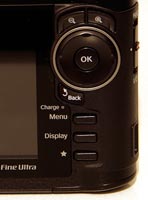
On the front of the Epson P-5000, to the right of the LCD screen, are the main controls. Working from top to bottom, the Zoom In and Out buttons operate as their names suggest (either 50% or 100% magnification), and also adjust the music volume. The large round OK button is designed to be used by your right thumb and simply selects what is highlighted. Surrounding the OK button is a 4-way Navigation ring that allows you to navigate around the menu system. The smaller Back button underneath cancels the selection and returns you to the previous screen, much like a Web browser. The small Charge Lamp lights green when the battery is charging and orange when an error has occurred. Menu displays a context sensitive menu for the currently selected option - it is the equivalent of right-clicking in Windows and displays different sub-options that are relevant to what is selected. Pressing the Display button will show a certain level of information about what is currently selected. If you are viewing an image, for example, it will show EXIF information for that image (if available), such as shutter speed, date and focal length, plus a histogram. Finally the Star button allows you to allocate a 1-5 star rating to a photo (but strangely not to a music or video file).
| Compared to the P-4000 | Battery Compartment |
 |
 |
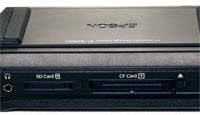
There are two memory card slots on top of the P-5000 which allow you to insert either Compact Flash, MicroDrive or SD/SDHC cards. You need to purchase a CF adapter in order to use other card formats with the Epson P-5000 (obviously adding to the overall cost). A very nice design feature is that the memory cards go all of the way into the Epson P-5000 without sticking out of the slot. This means that you can insert your memory card, start copying the data, set the Power Switch to Hold, put the Epson P-5000 into your bag and forget about it while the data is being copied, without having to worry if the card will be knocked out of position or the wrong button being inadvertently pressed. If you're in the middle of a busy shoot, this could could be an important factor in being able to efficiently carry on with your work. The headphone socket is also located on top of the unit.
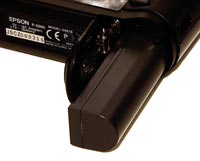
The external controls on the left hand side of the Epson P-5000 are all ways of connecting to the device. There is an A/V Out connector, dual-USB connector (host and slave), Reset button and an AC Adapter connector (used for powering and recharging the Epson P-5000). They are all protected by much-improved hard rubber covers. On the bottom of the device is the speaker and the battery compartment. The Epson P-5000 is powered by the same long and thin 3.7V, 2600mAh rechargeable Li-Ion battery that was used for the P-4000 (handy if you upgrade). I would estimate that I used the Epson P-5000 for about 3 hours for copying and viewing before it needed to be recharged.
The Epson P-5000 will display JPEGs from any digital camera that are less than 30Mbs in size, and allow you to zoom in and out onscreen. Of greater interest to photographers who use digital SLRs is that the Epson P-5000 displays full screen previews of RAW files from certain cameras, and unlike previous Epson storage viewers, it also allows you to magnify them. All of the currently supported cameras are listed at the bottom of the Specifications page of our review. This make the Epson P-5000 one of the few portable storage devices capable of both storing RAW files and allowing you to view them and is great news for the DLSR owner who uses the RAW format. If your camera is not supported, you can still transfer your RAW images onto the Epson P-5000, but you won't be able to see a preview version of them (just a small generic thumbnail icon instead).
I tested how much data could be transferred onto the Epson P-5000 before it ran out of power. I copied a massive 27 cards of 1Gb data before the battery icon started showing that it was becoming depleted, over double what the older P-4000 model achieved, and it took 2 minutes 10 seconds to transfer each card, less than half the time that the P-4000 model took. These speed improvements will really be appreciated by event and wedding photographers. Unlike many portable storage devices, the battery in the Epson P-5000 can be taken out and swapped for another one, so you can buy and carry a spare with you if you require even longer performance. Connecting the Epson P-5000 to your computer is as simple as using the supplied USB cable. The Epson P-5000 appears on your PC or MAC as a new hard drive. You can then copy files onto your computer or vice-versa using the usual copying methods that your computer offers. Epson recommends that you use the supplied AC adapter to power the device whilst copying files across, but if you have a full battery charge you don't have to use the AC adapter. The Epson P-5000 has a high-speed USB 2 connection, which in the real world translated into a fast transfer time of 35 seconds for 1Gb of data.
In summary the Epson P-5000 is a quite stylish yet rugged device with a easy to understand user interface and menu system. Out in the field where it really matters, the Epson P-5000 provides very quick transfer from memory cards, long battery life and the invaluable ability to actually view your JPEG and RAW images and verify them, all in a relatively compact package that can be hung from your belt or stored in your camera bag.
|