
Samsung NV40 Review
Review Date: May 8th 2008
Author: Mark Goldstein
Leave a comment about this Review
|
Introduction
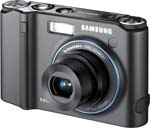
Announced back in January, the stylish Samsung NV40 is a new addition to Samsung's now extensive range of NV-branded compact digital cameras (12 in total). As with the rest of the NV range, the NV40 employs the same unique, Smart Touch interface, which completely does away with the traditional camera menu system. The Samsung NV40 offers 10 megapixels of resolution, a 3x zoom lens complete with true optical image stabilisation, a 2.5 inch LCD screen, Face Detection, ISO range of 80-3200, and full manual shooting mode for the more experienced photographer. New features include Auto Contrast Balance, which compensates for backlit conditions, Self portrait mode and a Photo Style Selector control dial with 7 types of photo style effects. Mark Goldstein found out if the Samsung NV40 has enough style and substance to justify its �199 / $280 price-tag and stand out from the crowd.
Compare Prices
Support PhotographyBLOG: Buy the Samsung NV40 from one of our affiliate retailers:Ease of Use
With a stylish and substantial metal body (also available in black) and two mysterious rows of unlabelled buttons on the rear, the Samsung NV40 is a radical departure from your everyday compact digital camera. 'NV' stands for New Voyage, and in terms of the look and feel of the NV40, Samsung have certainly delivered. From the front it looks like a stylish but fairly conventional digital camera. Look more closely though, and you'll start to see why the NV40 is so different to the norm.
There's a distinctive blue ring around the NV40's 3x optical zoom lens (34-102mm), indicating that this is a quality Schneider optic. Samsung are trying to do something similar to Canon's red ring (used to denote their pro "L" series SLR lenses) and use the blue ring to denote their best quality digital camera products. The small red LED on the right is actually a powerful focus assist lamp, there's a built-in flash unit above the lens, and also a minimal but effective vertical hand-grip which ensures that you can hold the camera securely.
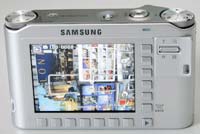
The rear of the NV40 is where things really get interesting. There's a 2.5 inch LCD screen surrounded by a vertical row of 6 square buttons on the right and 7 buttons on the bottom. Only one button is labeled, the OIS/Back button, and there's also a Play button. The rocker-style zoom lever becomes the zoom button when viewing images that you have taken, whilst the metal camera strap eyelet cleverly doubles up as a convenient place to hold the camera with your right thumb. So what do those unlabelled buttons actually do? Samsung call them Smart buttons, briefly explaining in the User Guide that they are "used for shifting the menu cursor to select or for confirming the selected menu". Not the greatest of explanations, I'm sure you'll agree!
What Samsung have actually done is replace the conventional main menu system that most cameras have (usually accessed via the Menu button) with a context-sensitive system that is always shown on-screen. Depending on which shooting mode is currently selected, each button corresponds to a specific option, for example auto-focus mode, which is represented by an icon on the LCD screen. You simply press the corresponding vertical or horizontal button to display and select the sub-options for that function. You can also scroll through the options by simply moving your thumb up or down, left or right across the touch-sensitive buttons.
What's more important is that being able to see the entire menu system onscreen makes it much easier to understand and access. You no longer have to try and remember which menu a particular option is in. The downside is that the icons, although fairly small and unobtrusive, are displayed all the time, overlaid on top of the live image preview. If you find this really irritating, Samsung have provided a solution in the Setup menu. Simply change the OSD Set option to Hide, and the icons will disappear from the screen after 3 seconds of non-operation, and then instantly re-appear when you press any of the smart buttons again.
 |
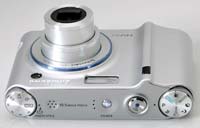 |
| Rear Controls | Top Controls |
Initially I found Samsung's touch sensitive smart button system to be more revolutionary than effective, but once I'd discovered the Hide option and used it for a while, it became a lot more intuitive, making the various menu options much more accessible and speeding up the operation of the camera. It's a very brave step by Samsung as it may put some buyers off (particularly as it takes some time to get used to), but on the whole it's also a great idea. There are a couple of points of weakness though. In some shooting modes there are simply more options that there are buttons. Samsung have addressed this by making the bottom-right button toggle between two rows of options. Press it once to display and choose the second row, press it again to return to the default row. It kind of works, but you do have to try and remember which options are in the second hidden row. More importantly, the touch-sensitive buttons aren't the most precise way to select the options which use on-screen sliders, such as Exposure Compensation and in particular Shutter Speed.
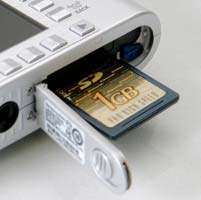
The top and bottom of the Samsung NV40 are more conventional. There's a small, recessed Power button, tactile Shutter button and a conventional mode dial on the top for selecting the various shooting modes (more on these later). A new addition is a second dial on the left (looking from the rear of the camera) which sets the Photo Style. On the bottom are a centrally positioned plastic tripod mount and the battery/memory card compartment. Overall the Samsung NV40 is superbly built, marking this out as a premium product. The metal body feels indestructible, everything is well-positioned, and all of the various controls are designed and finished to a high standard. The Samsung NV40 is definitely a camera that you will want to show off to friends and family, and one which should survive more than a few bumps and scrapes.
The NV40 is the first Samsung NV compact to feature a proper, mechanical anti-shake system, which can be turned on in any of the shooting/scene modes. Turn it on and the camera automatically compensates for camera shake, which is a slight blurring of the image that typically occurs at slow shutter speeds when the camera is hand held. In practice I found that it does make a noticeable difference, as shown in the examples on the Image Quality page. You don't notice that the camera is actually doing anything different when anti-shake is turned on, just that you can use slower shutter speeds than normal and still take sharp photos. Thankfully leaving the anti-shake system on didn't negatively affect the battery-life, with the camera managing around 200 shots using the supplied rechargeable lithium-ion battery.
The face detection feature can detect up to nine different faces and automatically set the correct focus and exposure, plus remove any red-eye. In practice it won't make too much difference for the more experienced photographer, as there's the tendency to pre-focus on the subject � and obviously a face if taking a portrait � before fully pressing the shutter button. It will prove more useful for the novice point and shoot user though who just wants to take a good portrait shot without any bother. I didn't notice any notable difference between having the Face Detection settings on or off in terms of focusing speed, so I just set the camera to the latter.
The Manual mode gives you full control over both aperture and shutter speed. It's quite surprising to find this on what is predominantly a style-focused camera, but very welcome anyway. When you half-press the shutter button, the camera tells you how under- or over- exposed the resulting image will be based on the current shutter speed and aperture by showing the Exposure Compensation symbol and a plus or minus value, with values greater than +-2 shown in red. It's a simple system that works quite well, although there are a couple of notable drawbacks. Firstly, it's tricky to use the touch sensitive user interface to quickly and accurately select a shutter speed. More importantly, only two aperture values are available, for example f/2.8 and f/7.0 when the lens is set to wide-angle, which perhaps explains why there is no aperture-priority mode. This effectively restricts what you can do, but I'd still rather have a limited Manual mode than no Manual mode at all.
 |
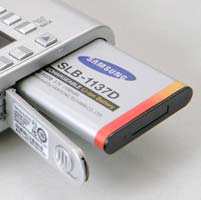 |
| Memory Card Slot | Battery Compartment |
The new Photo Style dial on top of the camera provides direct access to the Normal mode and 7 additional special effects (Soft, Vivid, Forest, Retro, Cool, Calm, Classic). As you turn the dial, a preview of the current effect is shown on the LCD screen. If you want a quick and easy way of changing the look of your photos in-camera, or you don't have access to a computer, then the Photo Styles are quite effective. Just remember that the photo is only taken in the specific mode that you have selected - unlike some other cameras, a "normal" copy of the image isn't recorded as well. The Auto Contrast Balance function does what itr says on the tin - automatically adjusts the contrast of a photo by measuring the darkness and brightness. This is especially useful when the main subject of the image is dark against a very bright background. In this case, the NV40 will brighten the subject so that they are properly exposed, although note that it does so at the expense of losing detail in the background.
If you have never used a digital camera before, or you're upgrading from a more basic model, reading the easy-to-follow manual before you start is a good idea, although it's not exactly the most in-depth read. Thankfully Samsung have chosen to supply it in printed format, rather than as a PDF on a CD, so you can also carry it with you. The 2.5 inch LCD screen is the only way of framing your shots, so if you have to have an optical viewfinder, look elsewhere now. Samsung have used a screen with a perfectly acceptable 230,000 pixels which is visible in all but the brightest sunlight. The various icons used to represent the camera settings are clear and legible, which is a good thing given the predominantly visual operation of the camera.
The start-up time from turning the Samsung NV40 on to being ready to take a photo is quick at less than 1 second, and it takes 1 second to zoom from the widest focal length to the longest. Focusing is quick in good light and the camera achieves focus most of the time indoors or in low-light situations. The visibility and refresh rate of the 2.5 inch LCD screen are good. It takes less than a second to store a JPEG image, allowing you to keep shooting as they are being recorded onto the memory card - there is a very short LCD blackout between each image. In the fastest Continuous mode the camera takes 3 frames per second for just 3 frames, which is somewhat limiting. As with the NV20 model, you can't use flash at all in the continuous shooting modes though. Overall the Samsung NV40 is quite quick in terms of operational speed.
Once you have captured a photo, the Samsung NV40 has a fairly good range of options for playing, reviewing and managing your images. You can instantly scroll through the images that you have taken using the touch sensitive smart buttons, view 9 thumbnails, and zoom in and out up to 11x magnification. You can view slideshows with audio, set the print order, delete, protect, rotate, trim and resize an image. Different colour effects can be applied to an image (Colour Filter, Shaded, Elegant, Add Noise). Note that there is no histogram available during either shooting or playback.
In summary the Samsung NV40 is an innovative, stylish and well-built digital camera. The smart touch menu system does take a while to get used to and won't be to everyone's taste, but works surprisingly well in practice.
|
 PhotographyBLOG
is a member of the DIWA
organisation. Our test results for the Samsung NV40 have been submitted to DIWA
for comparison with test results for different samples of
the same camera model supplied by other DIWA
member sites.
PhotographyBLOG
is a member of the DIWA
organisation. Our test results for the Samsung NV40 have been submitted to DIWA
for comparison with test results for different samples of
the same camera model supplied by other DIWA
member sites.